Keep Gmail, read it in Kistrl: forward your Gmail in five minutes
You do not have to give up your Gmail address. Forward it to Kistrl once, and new senders wait at the Doorway while your Gmail inbox stays quiet.
You do not need a new email address to use Kistrl. Keep your Gmail address, give Gmail one instruction, and the mail that arrives from now on shows up in Kistrl, where new senders wait at the Doorway until you decide about them.
This takes about five minutes. You can undo it at any time by switching forwarding off in Gmail.
Before you start
- A personal Gmail account works best. If your Gmail address belongs to a school or company (Google Workspace), your administrator may have turned forwarding off. If you do not see the option in step 2, ask them.
- You need Kistrl open on one screen and Gmail on the web on another. Gmail’s settings are only available in a browser, not in the Gmail phone app.
What forwarding does and does not do
| It does | It does not |
|---|---|
| Send a copy of every new message to Kistrl, from the moment you turn it on | Bring in old mail. Your history stays in Gmail |
| Keep your Gmail address working for everyone who writes to you | Sync anything back: reading, labels and archiving in Kistrl do not change Gmail |
| Let you choose what Gmail does with its own copy | Forward spam. Gmail keeps messages it marks as spam |
Replies you send from Kistrl leave from your Kistrl address, not your Gmail address. That is how many people start a gradual move. Your Gmail address keeps receiving mail either way.
Step 1. Copy your import address in Kistrl
- In Kistrl, open Settings, then Forwarding.
- Open Bring mail from another provider, then choose Copy address next to your import address.
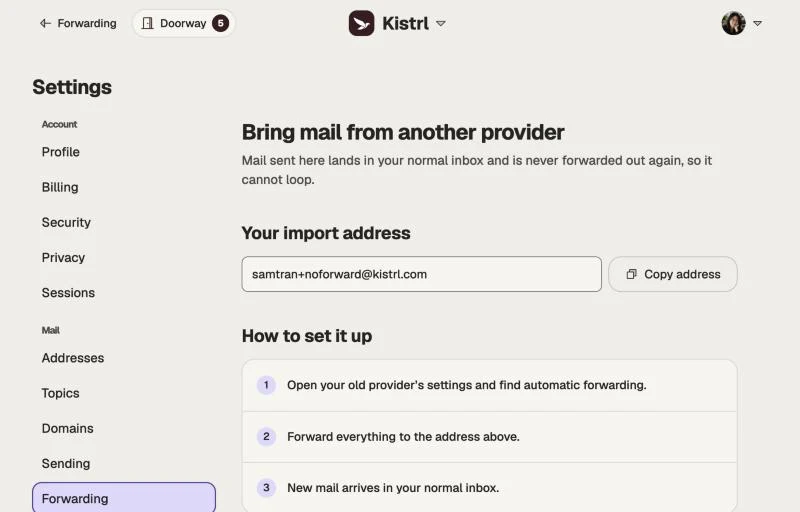
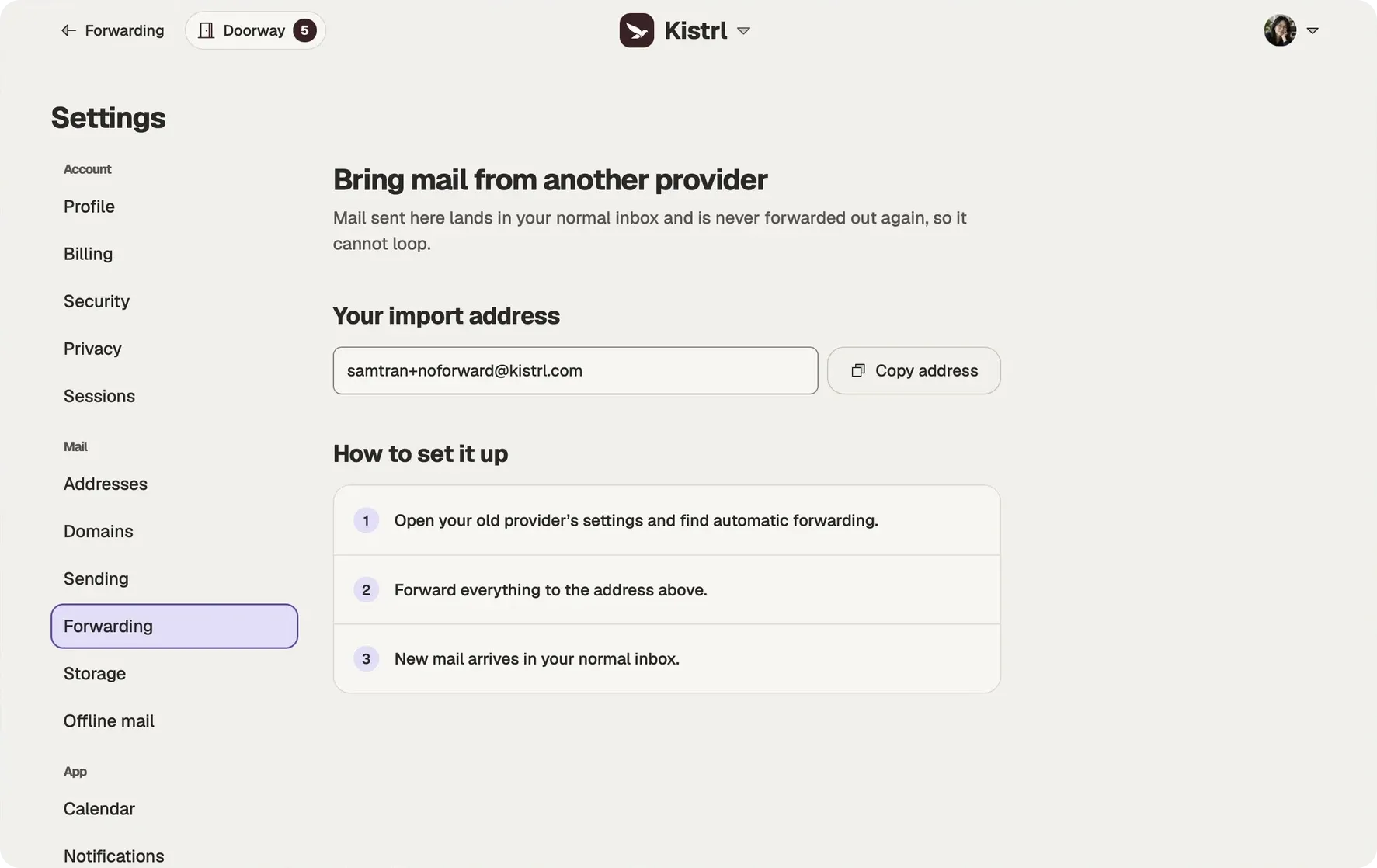
The screen shows a demo account, Sam Tran. Your own import address has the same shape: your username, then +noforward, then your Kistrl domain.
This address only accepts mail coming in. Mail forwarded to it goes into your normal mailbox and is never sent back out, so the two services cannot loop.
Step 2. Add the address in Gmail
- In Gmail on the web, click the gear icon, then See all settings.
- Open the Forwarding and POP/IMAP tab.
- Click Add a forwarding address, paste your import address, and click Next, then Proceed.
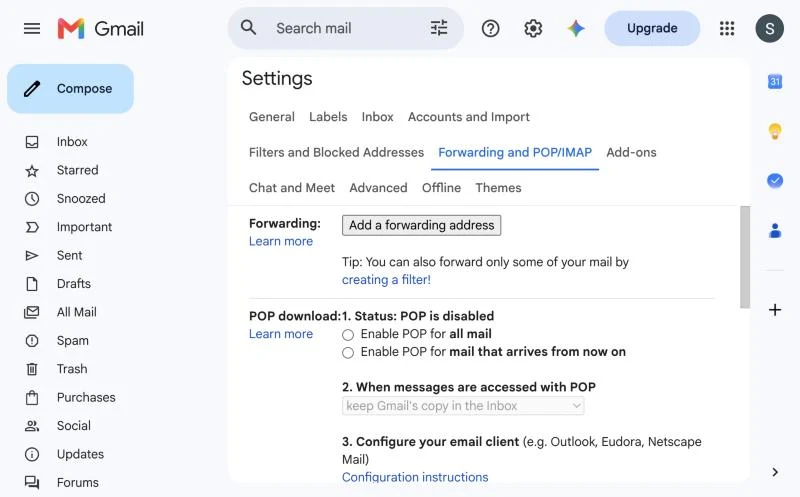
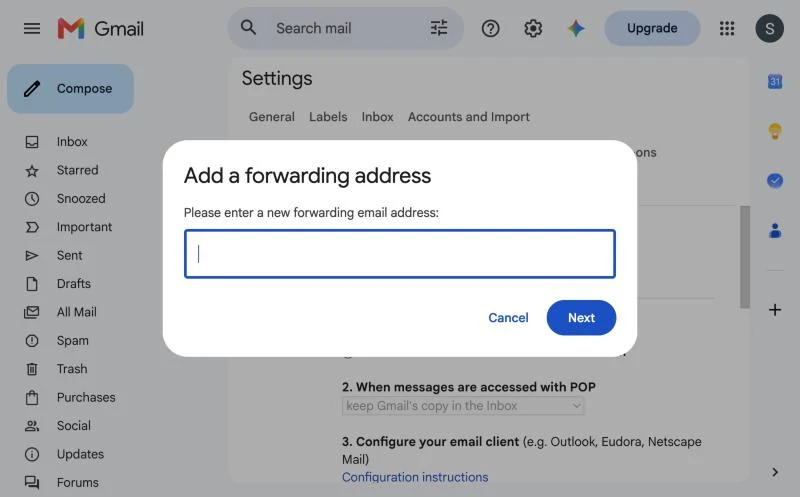
Screens captured in a Gmail account on 30 October 2026. Gmail changes its settings pages from time to time, so yours may look slightly different.
Step 3. Confirm the address
Gmail sends a confirmation message with a code to the import address, so it arrives in Kistrl.
- Open Kistrl. The message from Gmail may be waiting at the Doorway as a new sender. Let it in to read it.
- Copy the confirmation code.
- Go back to Gmail’s Forwarding and POP/IMAP tab, enter the code next to your address, and click Verify.
Step 4. Turn forwarding on and choose what Gmail keeps
- Still on the Forwarding and POP/IMAP tab, choose Forward a copy of incoming mail to and pick your Kistrl address.
- In the dropdown next to it, choose what Gmail does with its own copy.
- Click Save Changes at the bottom of the page.
Which option to choose:
- Archive Gmail’s copy is the right choice if you want Kistrl to be where you read. Gmail’s inbox stays empty, and you only get one notification per message. Nothing is deleted: everything stays searchable in Gmail under All Mail.
- Keep Gmail’s copy in the Inbox is the right choice for trying Kistrl for a week. Every message appears in both places, so turn off Gmail’s notifications on your phone to avoid two buzzes.
Step 5. Quiet the Gmail app, install Kistrl
On your phone, turn off notifications in the Gmail app, or remove its account if you want it out of the way. Install Kistrl and sign in.
Step 6. Send yourself a test
From another email address, or a friend’s, send a message to your Gmail address. A minute later it should reach Kistrl at the Doorway. Choose where that sender goes (Inbox, Feed, Paper trails, Screened out or Spam) and the decision applies to everything they send afterwards.
What to expect in the first days
The Doorway is empty on day one, because only new mail is forwarded. As people and companies write to you over the next two or three days, you will see their first messages arrive and can decide about each sender once. Newsletters go to the Feed, receipts to Paper trails, and the inbox shrinks toward zero.
If something does not work
- Gmail does not offer “Add a forwarding address”. Your account is probably managed by an administrator who has turned forwarding off.
- The confirmation code never arrived. Check the Doorway and Screened out in Kistrl, then use Resend in Gmail.
- Nothing arrives after a test. Check that the setting reads “Forward a copy of incoming mail to” and not “Disable forwarding”, and that you clicked Save Changes.
- Mail arrives twice or Gmail still buzzes. Gmail is keeping its copy in the Inbox. Change it to archive, or mute the Gmail app.
Turning it off
Return to Forwarding and POP/IMAP in Gmail and choose Disable forwarding, then save. Mail stops flowing to Kistrl at once. What already arrived stays in Kistrl, and nothing is lost in Gmail.
Going further
Once you are comfortable reading in Kistrl, you can move gradually: give new shops and newsletters your Kistrl address, and later use your own domain so your address is yours wherever you read it.
This is part 1 of a short series on using Kistrl with Gmail. In part 2, keep a copy of your Kistrl mail in Gmail.
Start fresh. Keep your old address working.
Forward new arrivals into Kistrl’s import-only address. Your old history can stay where it is while you try a fresh inbox.
Keep the old provider’s copy.
Configure forwarding and copy retention at the old provider, then test with a new message.
Use the import-only address.
Imported arrivals are never forwarded out again, preventing a forwarding loop.
Keep copies when useful.
Eligible direct Kistrl arrivals can also go to a verified archive destination. Copies do not synchronize read state, folders or sent mail.