Keep a copy of your Kistrl mail in Gmail
Kistrl can send a copy of every new message to your Gmail address as well. Add Gmail as a destination, confirm it with a code, and your Gmail inbox keeps a copy while Kistrl stays the place you read.
Part 1 of this series sent your Gmail into Kistrl. This part goes the other way: Kistrl sends a copy of new mail to an address you control, such as your Gmail. Originals stay in Kistrl. The copy is a safety net, a way to keep Gmail’s search, or a second place for one person to see important mail.
This takes about three minutes.
What forwarding from Kistrl does and does not do
| It does | It does not |
|---|---|
| Send a copy of every new message to each destination, from the moment the destination is confirmed | Send old mail. Turning it on, or back on, does not send a backlog |
| Let you keep up to five destinations | Forward spam or delivery notices |
| Leave the original in Kistrl | Sync anything back: reading, archiving or deleting the copy in Gmail does not change Kistrl |
Step 1. Add Gmail as a destination
- In Kistrl, open Settings, then Forwarding.
- Under Destinations, choose Add destination.
- Type your Gmail address and choose Send verification code.
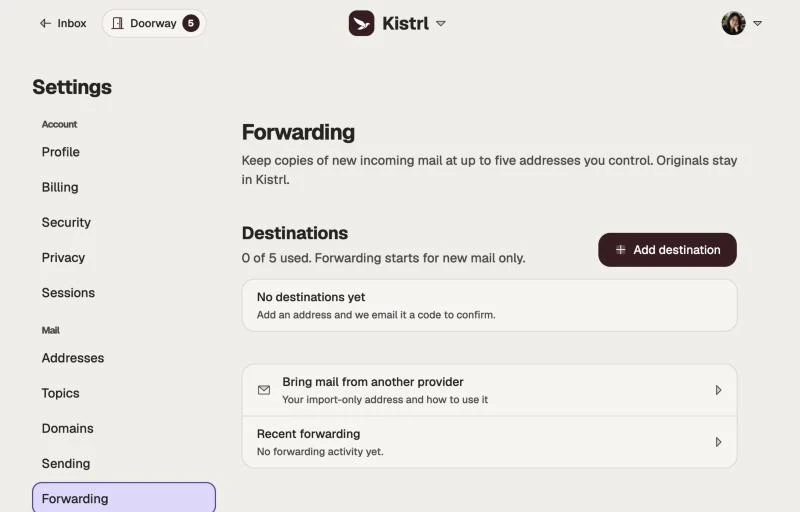
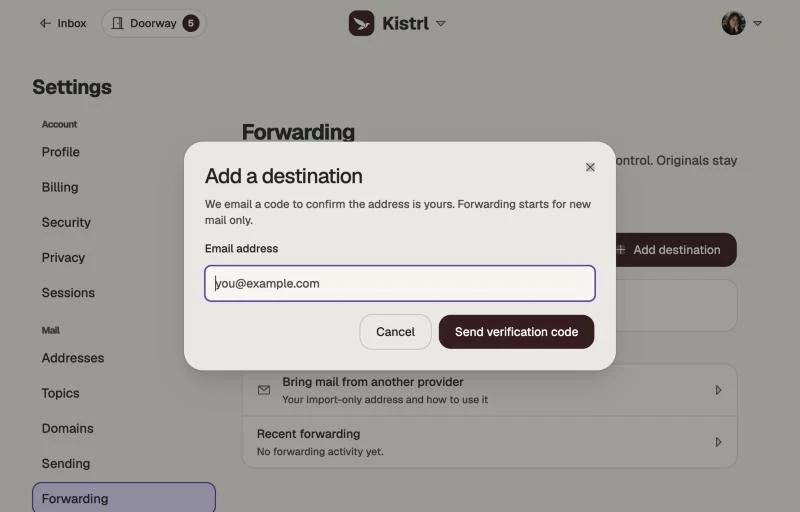
The screens show a demo account, Sam Tran.
Kistrl emails a code to the address to confirm that it is yours. Nothing is forwarded before you confirm it.
Step 2. Find the code in Gmail
Open Gmail and look for the message from Kistrl. If it is not in the Inbox, check Spam. Copy the code, return to Kistrl, and enter it.
Step 3. Check that it works
From another address, send a message to your Kistrl address. A copy should reach Gmail shortly after. Recent forwarding, under Destinations in Kistrl, lists what was forwarded.
Using both parts together
If Gmail also forwards into Kistrl (part 1), a message sent to your Kistrl address is copied to Gmail, and Gmail may forward it straight back to Kistrl. Kistrl never forwards mail that arrived through the import address, so this cannot loop, but you may see the same message twice. If that happens, use a second address as the destination, or turn off one of the two forwards.
Turning it off
Open Settings, then Forwarding, and remove the destination. New mail stops being copied. Copies already in Gmail stay there.