Tracking pixels: what an email learns when you open it
Many marketing emails carry an invisible image that reports when you opened them and from where. Here is how it works, what it reveals, and what actually stops it.
Open a promotional email and, very often, your mail app quietly downloads a picture you never see. It is usually a single transparent pixel. It exists to tell the sender that you opened the message.
How a tracking pixel works
An HTML email can include images that live on a web server instead of inside the message. When your mail app shows the email, it fetches those images. A tracking pixel is one of them, with a twist: its address is unique to you, often with your identity encoded in the link.
When your app requests that address, the sender’s server learns:
- that you opened the message, and when;
- your IP address, which can reveal your approximate location and network;
- details about your device and mail app, from the request headers;
- every later time you open the message, if the image is fetched again.
Links work the same way. A link in a newsletter usually passes through a tracking address that records the click before sending you on.
Why it matters
A single open is not dramatic. Collected over time, opens tell a sender when you read mail, where you are when you do, and which topics catch you. Senders use it to time campaigns, score how engaged you are, and confirm that an address is active, which makes it more valuable to anyone who trades lists.
What actually helps
Block remote images by default. If images do not load, the pixel never fires. The cost is that legitimate pictures do not show either, which is why most people give up on this setting.
Load images through a proxy. An image proxy fetches the image on your behalf. The sender’s server sees the proxy, not you: no IP address, no browser details, no cookies. A proxy that caches images also hides repeated opens, because the image is served from the cache.
Block known trackers. Many tracking services are well known and can be blocked by address before anything is fetched.
None of these is perfect. A unique image address fetched for the first time still tells the sender that someone opened the message and roughly when. The proxy hides your browser’s IP address and request details. A recipient-specific image URL can still identify which address opened a message.
In Kistrl
Choose how remote content loads in Settings → Privacy: directly, through Kistrl Proxy, or only after Load content. Block until I choose prevents remote images from loading before you request them. In proxy mode, the sender sees Kistrl’s servers instead of your browser; known trackers stay blocked, but a unique image can still reveal an open. See Privacy and safety.
Choose what loads when you open an email.
The Privacy screen offers three choices. Pick the behavior you want rather than assuming every message loads the same way.
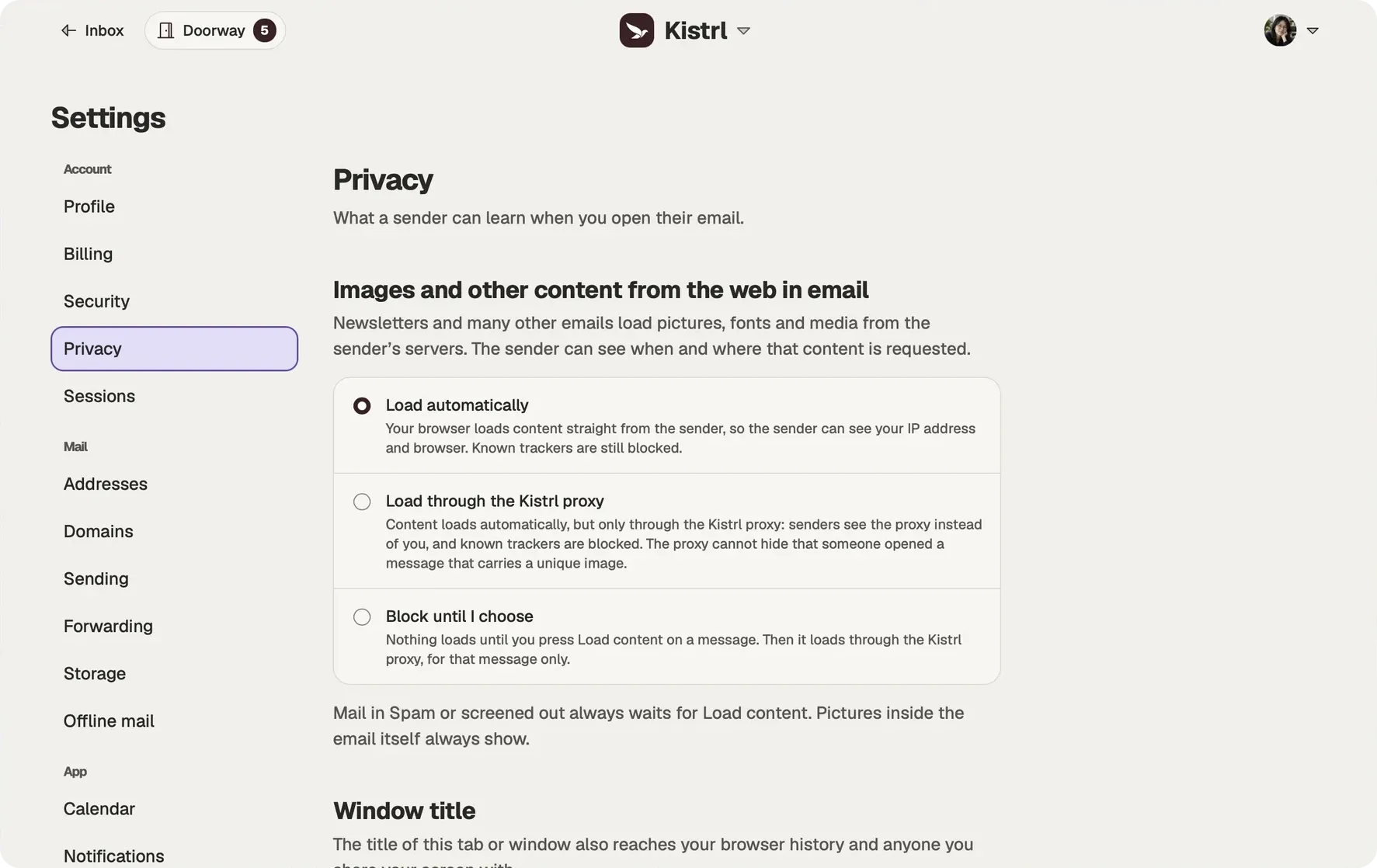
Load automatically.
Your browser contacts the sender’s servers. Known trackers are still blocked.
Load through the proxy.
Senders see Kistrl’s proxy instead of your browser and IP address. A unique image can still reveal an open.
Block until you choose.
Remote content waits for Load content, then loads through the proxy for that message.